Widget filters
|
|
|
|
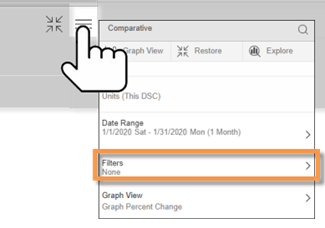
Filters may be applied to an individual widget. Tap on
|
|
|
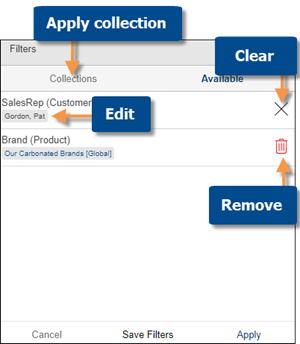
To add a widget filter Go to the Collections area; then, apply or create a collection.
To edit a widget filter (e.g., select a different member) In the Filters area for the widget, tap on any filter to edit it; then, choose one or more members to filter on them. Tap on Done and then Apply.
To clear or remove a filter Tap the X to clear a dimension or key filter (i.e., show data for all members); then tap on Apply. Tap the trash icon to completely remove a filter. |
|
|
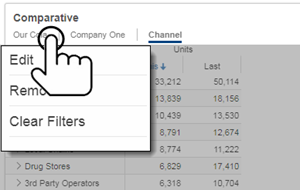
Tip: Some widget filters may also be edited, cleared, or removed by tapping on the filter in the breadcrumb path. |
|
 in the upper-right corner of the widget, and then tap on Filters to access widget filters.