Collections
You can create and apply custom collections of members to narrow down on your preferred subsets of data. Collections can be saved for future use, shared with other users, and utilized for ad-hoc filter selection.
Turn a collection on as a filter
Go to the filters area for the dashboard, widget, or column, depending on what you want to filter:
-
To filter data across the dashboard: Open the dashboard's Filter panel.
-
To filter data in a single widget: Tap on
 in the widget, and then tap on Filters.
 -
To filter an individual column (only in a Multi Comparative widget): Tap on the column heading, and then tap on Add Filter.
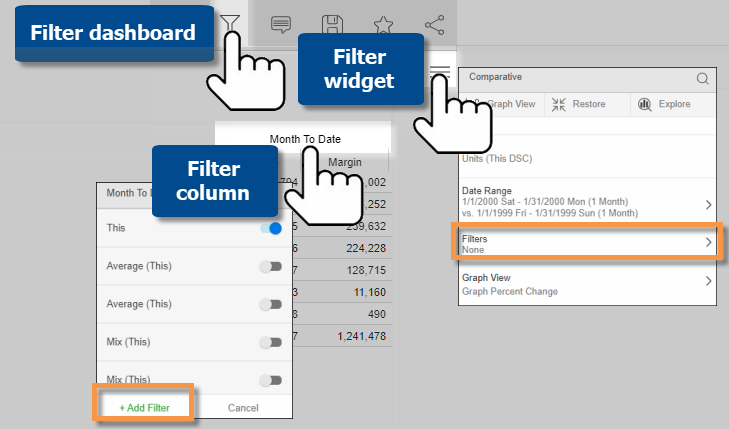
|
Next, go to the Collections area at the top of the panel. Then, locate and apply the collection. You can also create your own collection. Data for all other members will be filtered out (unless the collection uses the Exclude option, in which case the collection members will be filtered out). Tip: By default, the available collections are limited based on the Group By. If you cannot find the key or dimension of the collection, check the Show All box at the bottom of the first collections screen. |
 |

Dynamic collections and the mobile app
Dynamic collections are based on test criteria (e.g., units > 0) and automatically update rather than storing a static list of members. In the mobile app, you can view data that is filtered by a dynamic collection if it has been built into the dashboard. In this case, the collection will appear to be empty if you attempt to edit it. Creating, editing, and applying dynamic collections requires the Salient Dashboards browser application.
Create a collection
|
In the Collections area, tap on Create New Collection. Select the dimension/key and then choose collection members. When you are done, Save the collection for future use or immediately Apply it without saving (i.e. ad-hoc filter selection). Tips:
|
|
